The Proxy Manager
The Proxy Manager allows you to save proxies and VPNs purchased by you in a separate list, and use them when necessary by choosing them from that list.
Proxies and VPNs must be purchased separately (i.e., these are your personal proxies and VPNs), just like all other necessary resources and expendables.
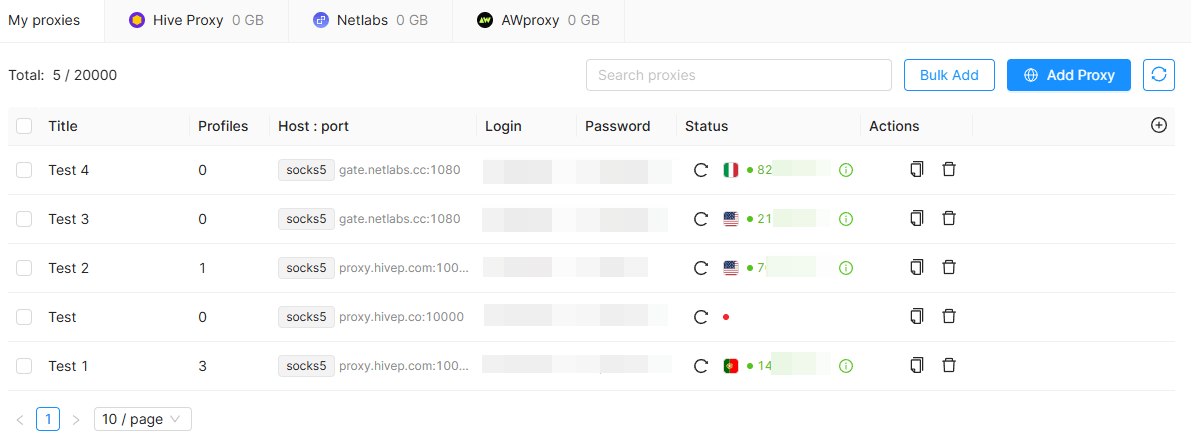
The "Proxy Manager" list displays the proxy /VPN name, profiles (the number of profiles using this proxy/VPN), protocol, address (host and port), login, password, country (proxy geo), advanced proxy information (IP, ISP, connection type, network fingerprint, location, timezone), status (you can find more information in the Proxy/VPN statuses section), change IP and check proxy options, and actions (copy, delete).
The proxy/VPN editing window will open when you click on the proxy/VPN name.
Clicking the "+" icon in the list allows you to edit the displayed columns and their order.
Using bulk actions you can select the desired proxies and VPNs to delete or check them, and also to change their external IP address via the IP address change link.
The refresh button at the top right (above Actions) allows you to refresh the proxy/VPN list.
You can see the number of proxies and VPNs you have and the total number of proxies and VPNs supported by your subscription (e.g., 110/1200) in the top left corner of the "My proxies and VPN" window. To the right you can find a search box that you can use to search for a proxy/VPN by its name.
The Proxy Manager is handy when working in a team. You can flexibly assign Proxy Manager rights to individual team members.
You can find our video tutorial covering the use of the Proxy Manager here: