Proxy/VPN statuses
Proxy/VPN statuses help you quickly understand what the state of a proxy/VPN is.
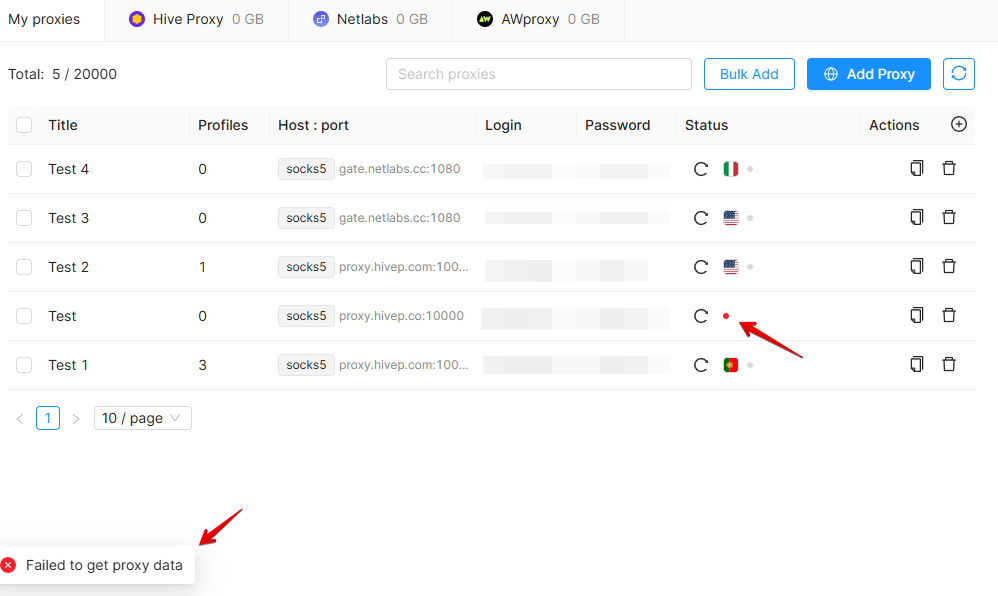
There are 3 states, which are distinguished by colors:
- Green: the proxy/VPN has been successfully verified.
- Gray: the proxy/VPN has not been checked, or the last check was more than 5 minutes ago.
- Red: unable to check the proxy/VPN.
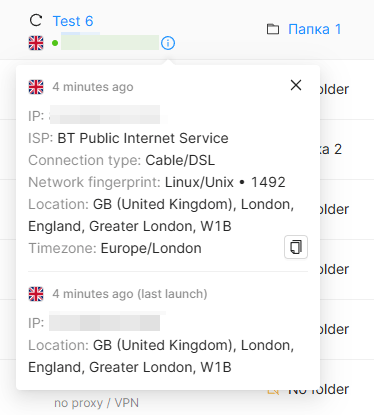
You will find the proxy/VPN flag to the left of the proxy/VPN status. A successful check needs to be performed for the flag to be displayed. If the proxy supports UDP traffic, a UDP icon will appear next to the IP address. An Info icon ("i") next to the IP address displays proxy/VPN connection details, including the IP address, ISP, connection type, network fingerprint, location, and time zone. The flag is saved and can change on subsequent successful checks. In rare cases when it is not possible to determine the country by IP, you will see a question mark instead of a flag.
By default the proxy check timeout is 5 seconds. Choose high-quality proxies for good speed, and take into account your connection features (for example, if you are connected via a VPN).
If a proxy/VPN stops working while you are working with a profile, you will see a connection error. Before changing the proxy/VPN, you must first close the profile. All editable changes to the profile settings are applied after saving and restarting the profile.
You can now see the IP address with which the profile was last launched, along with the date and location of the launch, in the "Proxy/VPN" details.